Remote Server Execution: Run Jobs on Your Own Server
Team Tiptree · · 5 min read
Remote Server Execution extends the Code Agent to run jobs on your own compute infrastructure—whether that's an HPC cluster with SLURM, a cloud VM, or a workstation under your desk. A lightweight daemon running on your server maintains a persistent connection to Althea, enabling job submission, progress monitoring, and automatic notification when jobs complete.
TLDR — If you have Claude Code, Codex, or Gemini CLI on the target machine, skip the manual steps. Give your agent the setup guide and let it handle everything:
Set up the Tiptree HPC daemon on this machine.
Follow the guide at https://tiptreesystems.com/hpc-daemon/setup-guide
My email is your_email@example.com and the service URL is https://tiptreesystems.com
You only need to enter the OTP from your email and respond to a few safety prompts (disclaimer agreement, directory restrictions) when prompted. The agent handles the rest.
Architecture
The system consists of three components:
Daemon: A Python process running on your server that connects to Tiptree via WebSocket. It automatically detects whether SLURM is available. If so, it submits jobs via SLURM; otherwise, it runs them as local background processes. It reports job completion in either mode.
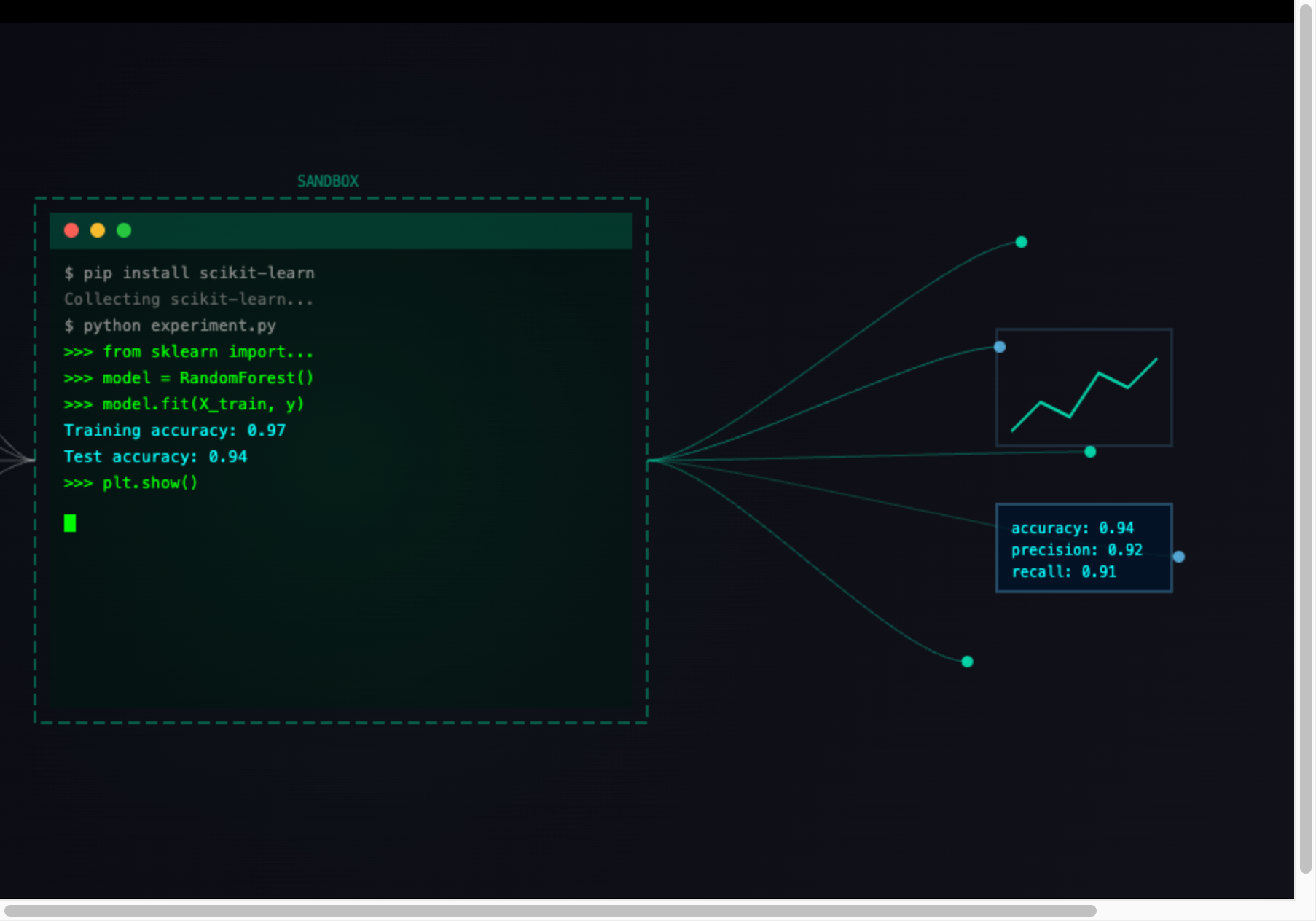
Code Agent: Runs in a sandboxed environment. When it needs remote compute, it discovers your registered daemons and selects the most appropriate one based on your request.
Wake-on-Complete: For long-running jobs, the agent goes to sleep after submission. When the daemon detects job completion, it triggers a callback that wakes the agent to retrieve results.
Enter the OTP sent to your email. You then review and agree to a disclaimer about remote code execution risks. Setup then walks through configuration steps:
Cluster skill. If you're on a supported HPC cluster (e.g. Mila), select the built-in skill. This gives the agent cluster-specific guidance—partition names, storage paths, module system conventions, and SLURM configuration. If no built-in skill matches, you can describe your server in plain text and the setup wizard will format it into a structured reference document for the agent.
Directory restrictions. The daemon asks where the agent is allowed to write files. The default creates a dedicated tiptree-workspace directory under $SCRATCH (or your home directory if $SCRATCH is not set) and confines all write operations there. On HPC clusters you can specify custom paths like $HOME and $SCRATCH. Skipping restrictions entirely gives the agent unrestricted write access to your filesystem, which can result in permanent data loss.
Custom skills and server instructions. Optionally attach additional markdown reference documents (library guides, coding conventions) and provide free-text instructions about the server. System info (OS, architecture, RAM, CPU, GPU) is detected automatically, so instructions should focus on usage guidance — storage paths, module commands, what the server is best suited for. You can also set a custom directory for job scripts and output logs (defaults to ~/hpc_jobs).
Use ~/scratch for large datasets.
module load cuda/12.1 before running GPU jobs.
END
The daemon ID defaults to the machine's hostname. Re-running setup for the same daemon ID updates the existing profile.
3. Start the Daemon
hpc-daemonstart
Expected output:
daemon - INFO - Job monitor started (LOCAL_MODE=False, interval=30s)
daemon - INFO - Connected to server!
daemon - INFO - Received welcome (daemon_id=login-1.cluster.example.com, heartbeat=30s)
4. Verify Registration
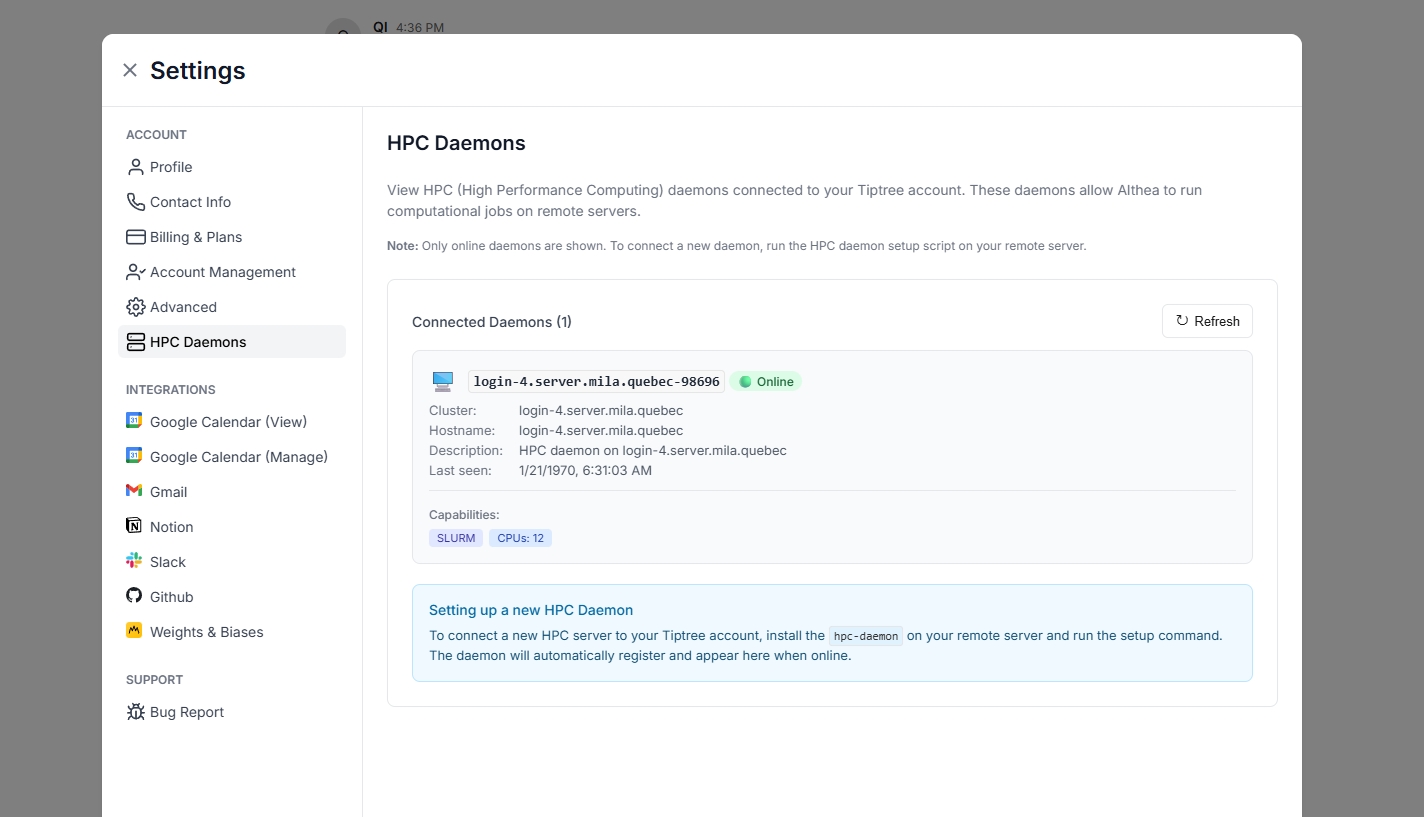
In the Tiptree web app, click Settings, then HPC Daemons under Account. Your server should appear in the list.
HPC Daemon Settings
Usage
Ask Althea to use your remote server. For example:
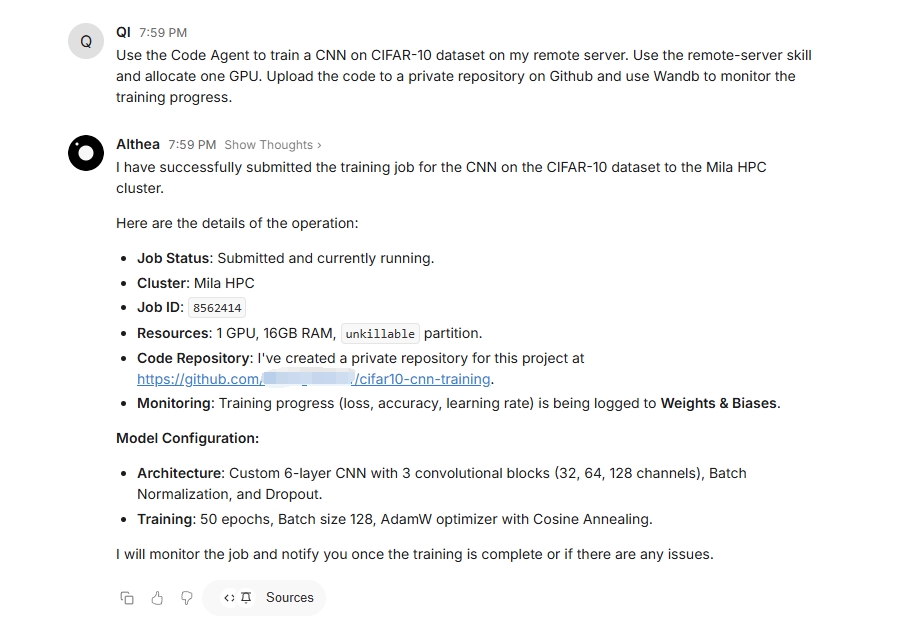
"Use the Code Agent to train a ResNet on CIFAR-10 on my remote server. Use the remote-server skill and allocate one GPU. Upload the code to a private repository on Github and use Wandb to monitor the training progress."
The Code Agent will:
Discover the daemon to run the job
Generate the training script
Submit the training job
Go to sleep and wait for the callback
Job Submission
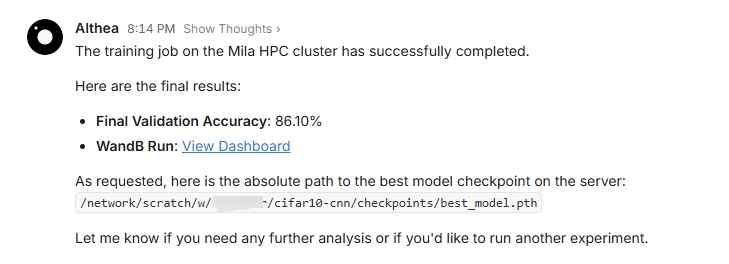
When the job completes, Althea wakes automatically and retrieves the results:
Job Complete
Multiple Servers
You can connect daemons from multiple servers simultaneously. When you submit a job, the Code Agent matches your request against each daemon's capabilities (auto-detected system info, GPU count, RAM, etc.) and server instructions, then selects the most appropriate one.
For example, if you have a workstation with an RTX 4090 and an HPC cluster with A100 nodes, and you ask to "run a quick test on CIFAR-10," the agent will route to your workstation. If you ask to "train a large transformer model," it will select the HPC cluster.
Server instructions you provide during setup add context that complements the auto-detected capabilities — storage paths, module systems, and what each server is best suited for.
Non-SLURM Servers
The daemon automatically detects whether SLURM is available on your server. If SLURM is not present, jobs run as local background processes instead. No configuration is required—the daemon handles this transparently.
To explicitly force local mode (e.g., on a SLURM cluster where you prefer not to use the scheduler), set LOCAL_MODE=1:
LOCAL_MODE=1hpc-daemonstart
Troubleshooting
Symptom
Cause
Solution
Daemon can't connect
Firewall blocking outbound WebSocket
Allow outbound connections to wss://tiptreesystems.com
Daemon not listed in settings
Registration failed
Re-run hpc-daemon setup
Daemon disconnects periodically
Platform restart or network interruption
The daemon reconnects automatically with exponential backoff. Check logs at ~/.hpc_daemon/<daemon_id>.log
Jobs run locally on a SLURM cluster
SLURM commands not on PATH
Ensure sbatch and sacct are available in your shell. The daemon auto-detects SLURM at startup